


How to Log Into an Account with Cookies: Step-by-Step Guide
How to Log Into an Account with Cookies: Step-by-Step Guide
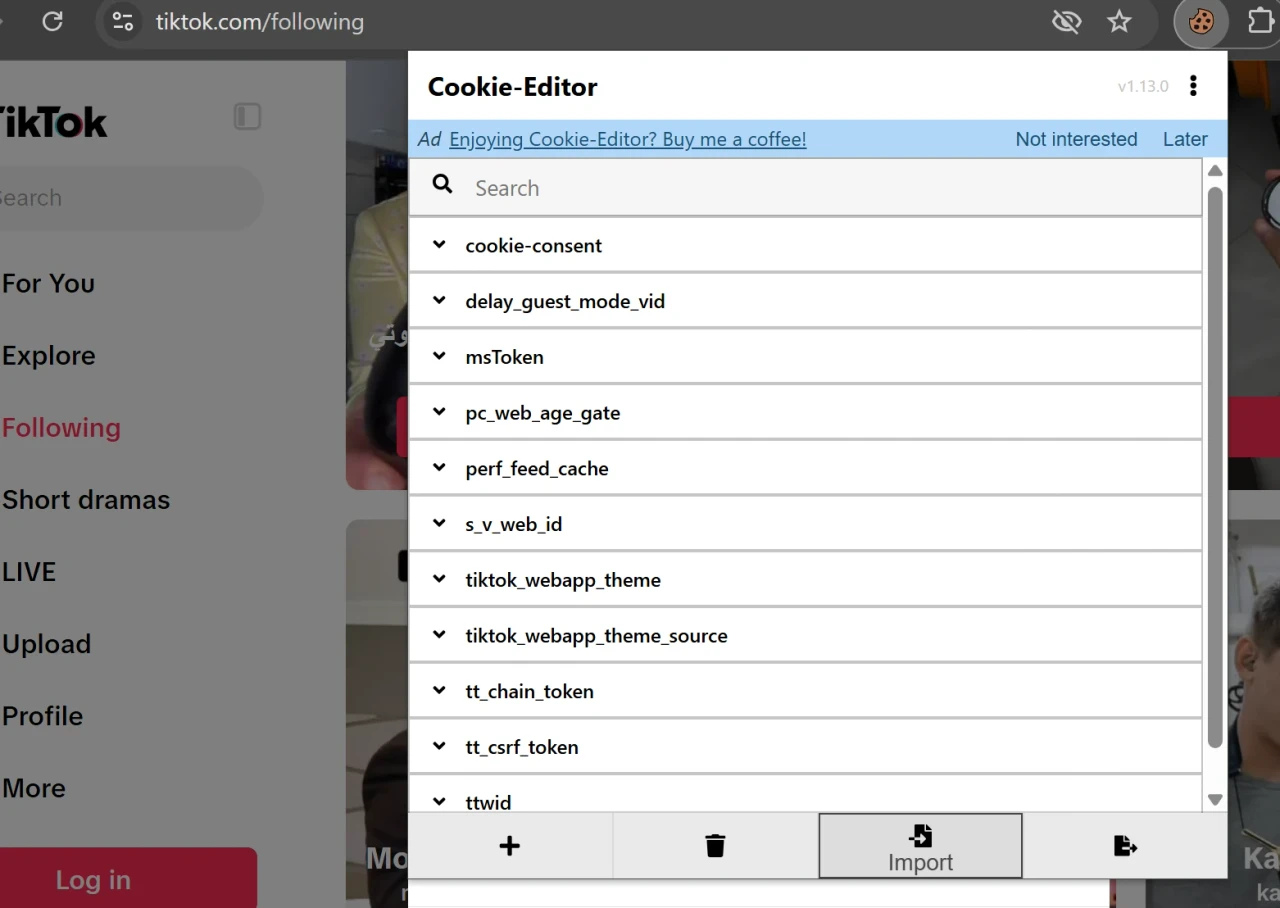
Logging in with cookies is a way to authorize without a password and without a 2FA code. Instead of a login, you load saved session cookies, and the platform considers you already signed in. Accounts usually come with a cookies.json file: all you have to do is load it into the browser and refresh the page. Here are two simple ways to log in with cookies.
If you need ready-made accounts with working cookies, you can find them at zfxshop.biz. It saves time on sign-up and warm-up.
What cookies are and why they let you log in
Cookies are small files a website stores in your browser to recognize you on future visits. Some handle service data, others ads, and a separate group handles the session. When you enter your password and pass 2FA, the server issues a set of cookies confirming that you are logged in.
If you move these cookies to another device, the platform treats the session as active and does not ask for a password. This is exactly how antidetect browsers and extensions like Cookie Editor work.
Cookies are saved after a normal login and keep the session until you log out
What comes with an account
An account usually ships with a cookies.json file, which is a list of all cookies needed for login. The file looks like text with curly brackets and name-value pairs. That is the file you will load into the browser, nothing to type in manually.
Method 1: Login via Cookie Editor
1. Install the Cookie Editor extension from the Chrome Web Store or Firefox Add-ons.
2. Open the website you want to log into. You do not need to sign in.
3. Click the Cookie Editor icon in your browser toolbar.
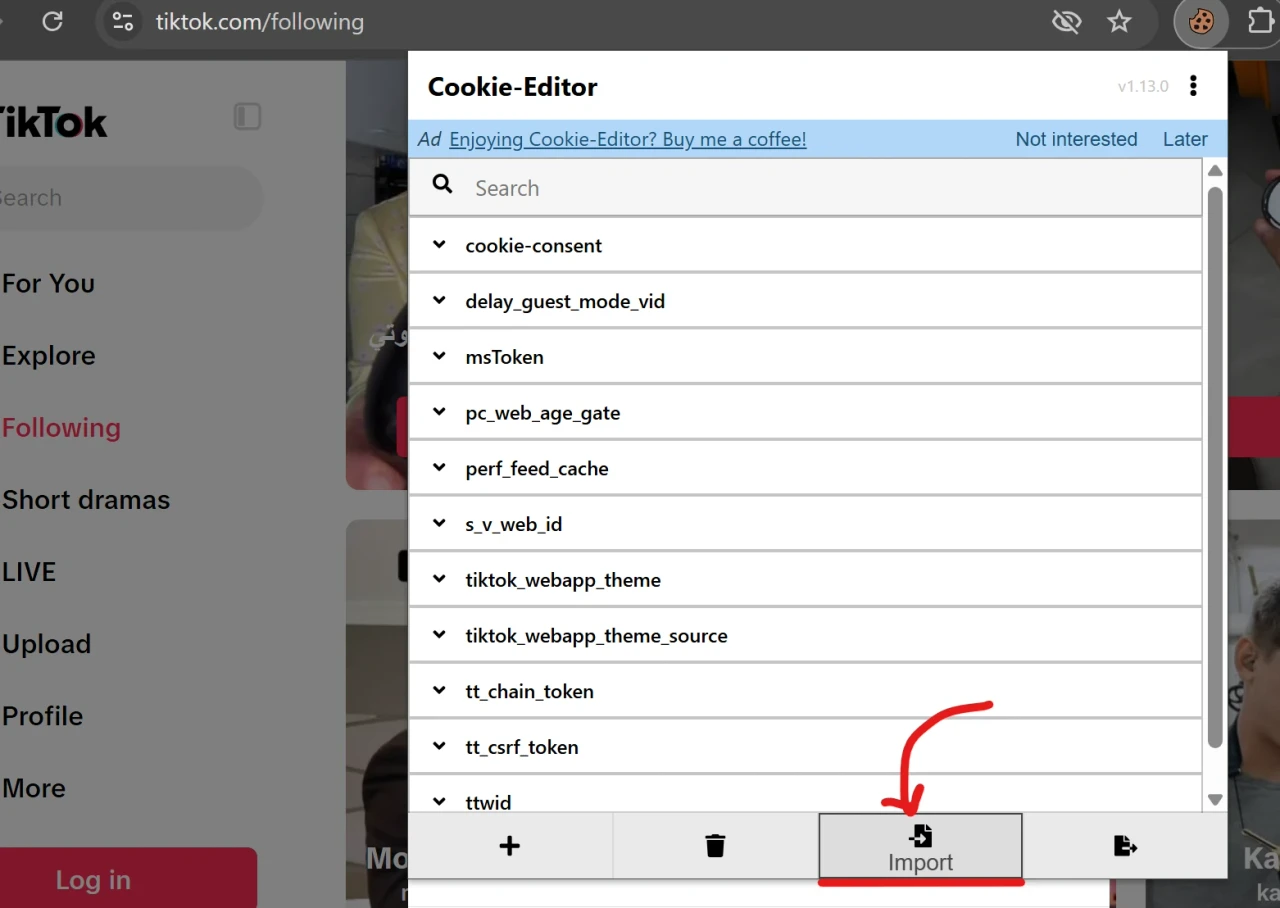
4. Click Import and paste the contents of your cookies.json file.
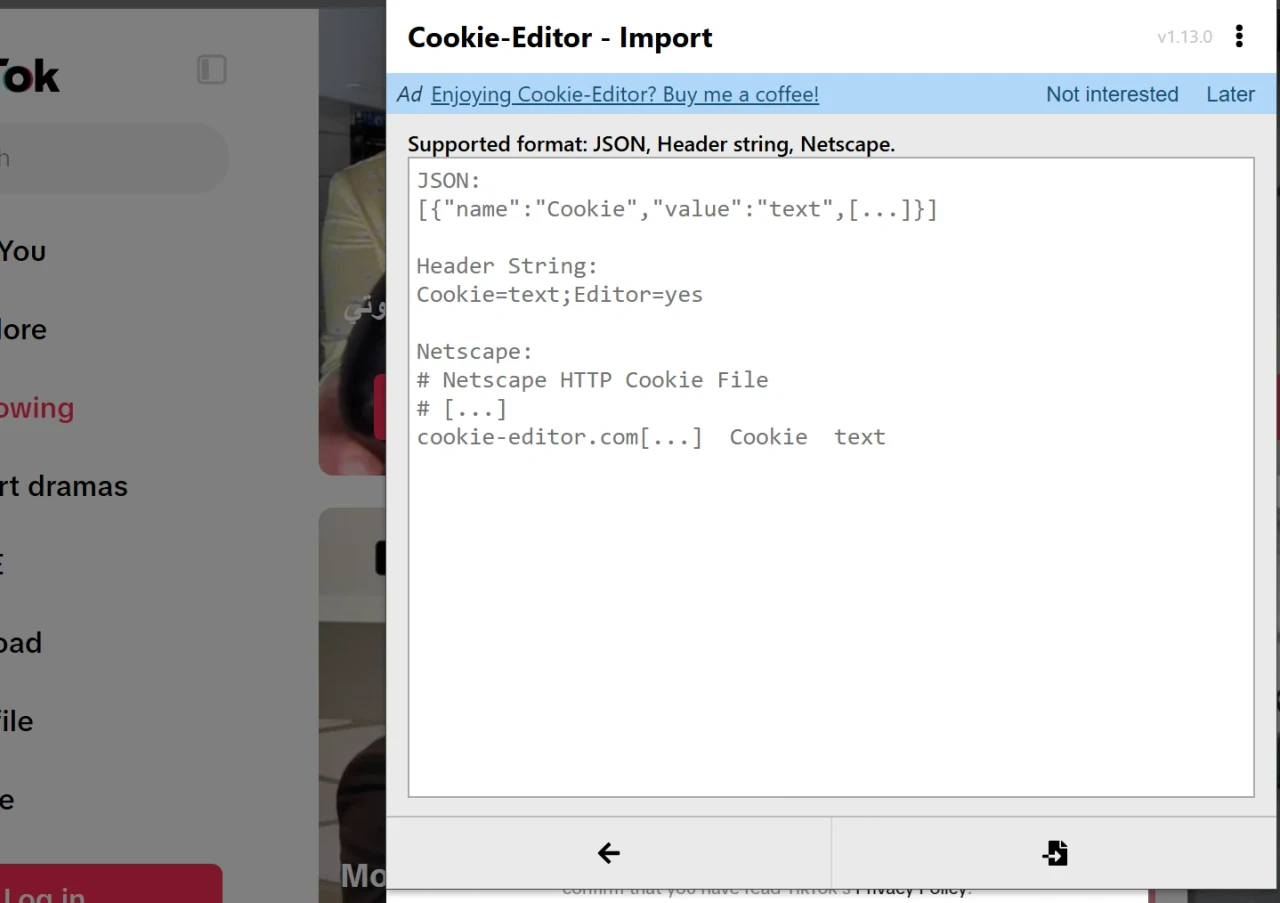
5. Click Save and the extension writes the cookies to your browser.
6. Refresh the page (F5). If the cookies are valid, you will be logged in automatically.
Method 2: Login via DevTools
1. Open the website and press F12 (or Ctrl + Shift + I on Windows, Cmd + Option + I on Mac).
2. Go to the Application tab.
3. In the left menu, choose Cookies and then the site's domain.
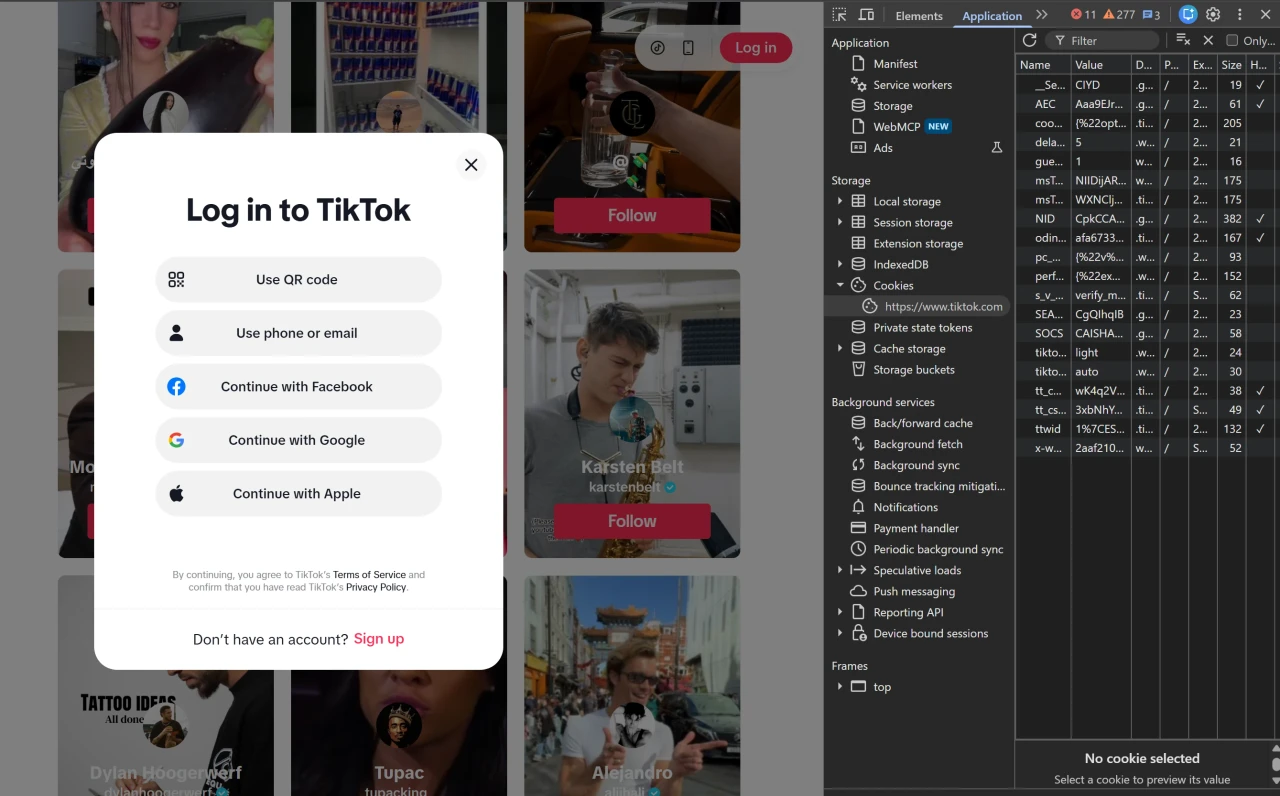
4. If old cookies are already there, remove them: right-click the list and choose Clear.
5. Right-click the list and choose Add.
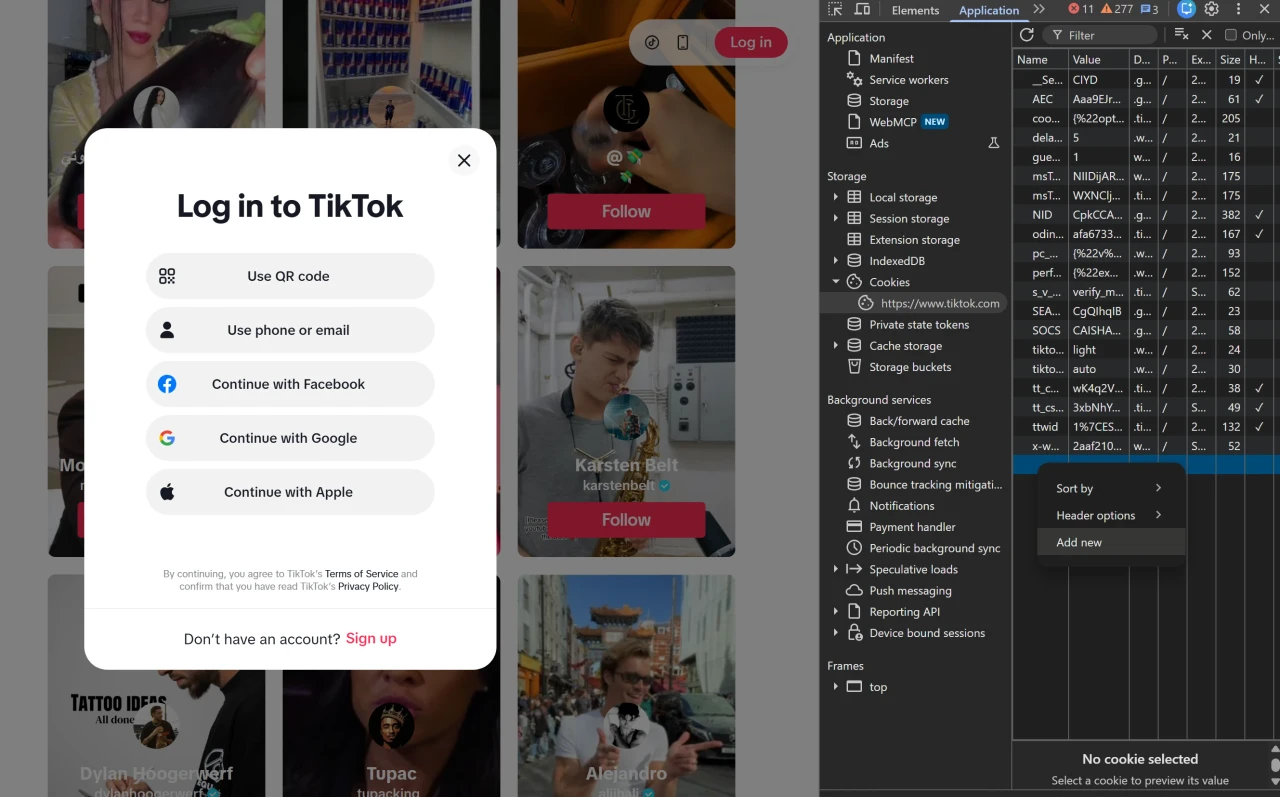
6. In the new window, enter the name and value from the cookies.json file. Repeat for each row.
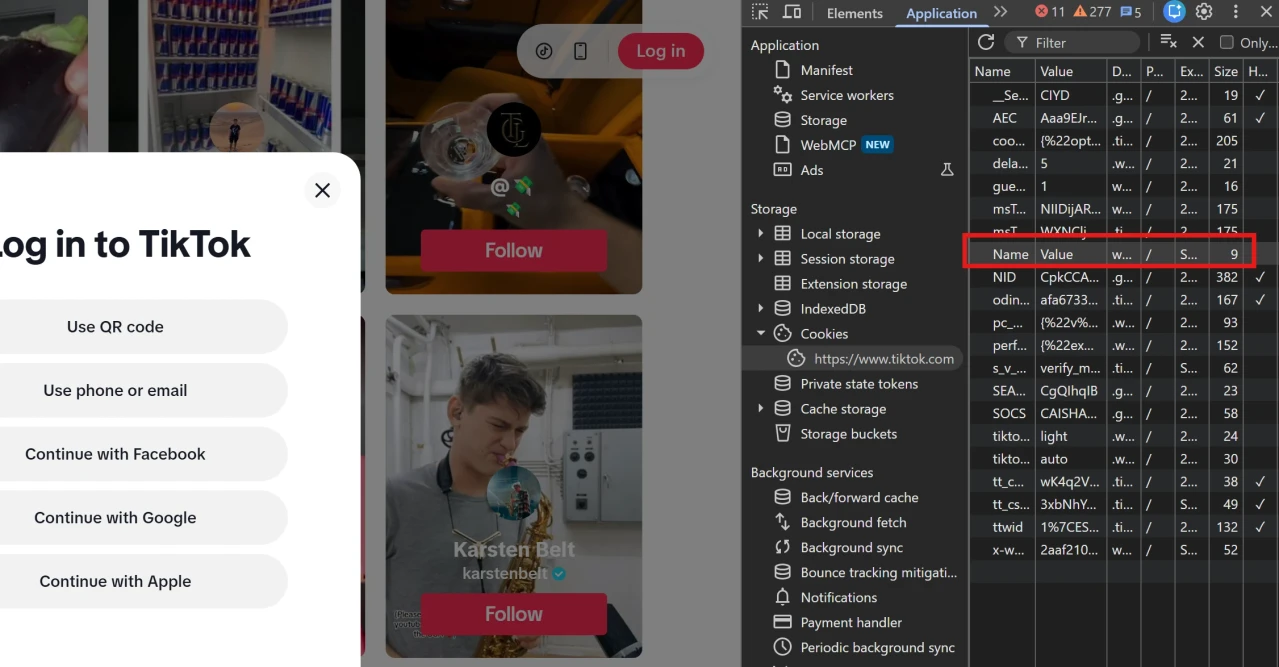
7. Refresh the page (F5). The session will be picked up.
If the file contains many cookies, Cookie Editor is faster: it adds them all at once.
Why login may fail
Cookies are outdated. If the account owner logged out or changed the password, the session is reset.
Wrong domain. In Cookie Editor the Domain field must match the site.
Very different browser fingerprint. Some platforms tie cookies to browser parameters and may ask for re-login.
IP mismatch. If the account used to work from one country and you log in from another, the platform may ask for confirmation.
Security
Cookies are a key to the account. Anyone who has them can log in without a password or 2FA. Do not share the file, do not paste it on untrusted sites, and treat it as carefully as a password. If you suspect a leak, change the account password: this resets all active sessions.
Conclusion
Logging in with cookies is a quick way to authorize that saves time and lets you work with several accounts. If you do not have a cookies file for the service you need, ready-made accounts with it included can be found at zfxshop.biz.