


How to Log Into an Account with Cookies on Android: Step-by-Step Guide
Cookie-based login on Android at a glance
On Android, standard Chrome does not support extensions, so logging in with cookies requires a browser that does. Kiwi Browser or Firefox for Android both work. They are free and handle cookies just like a desktop browser. Here is the step-by-step guide.
Important: use this method only as a last resort. Cookies are usually captured from the desktop version of a site, and a mobile browser has a different fingerprint. Because of this, the system may immediately send the account for review, ask for SMS confirmation or reset the session. If you can log in the normal way, do that. The guide below is for cases when other options are unavailable.
If you need ready-made accounts, you can find them at zfxshop.biz.
What you need
1. Kiwi Browser (or Firefox for Android).
2. Cookie Editor from the Chrome Web Store (for Kiwi) or Firefox Add-ons (for Firefox).
3. Session cookies from the account bundle.
Kiwi Browser is chosen because it fully supports Chrome Web Store extensions and works like a regular Android browser. Firefox for Android also works: since late 2023 it supports a large set of extensions, including Cookie Editor.
Step 1. Install Kiwi Browser
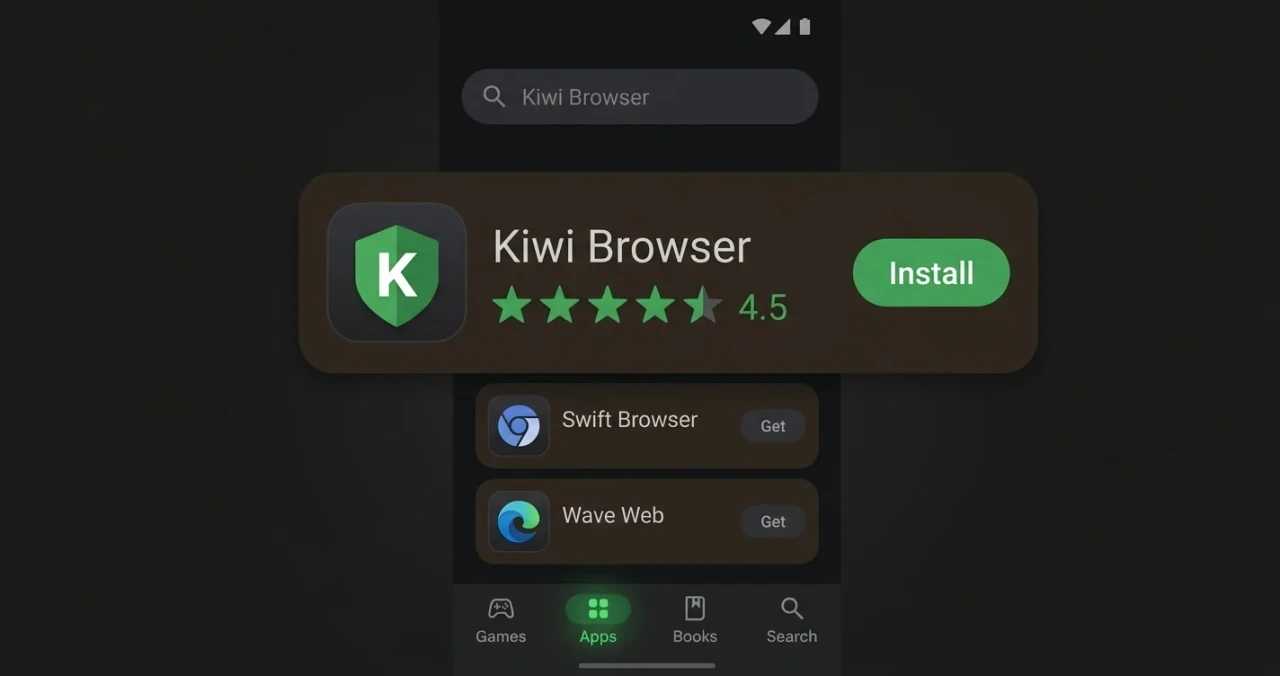
Kiwi Browser page in Google Play
Open Google Play and search for Kiwi Browser. Install it. It is a free Chromium-based browser that supports Chrome Web Store extensions.
Step 2. Install Cookie Editor
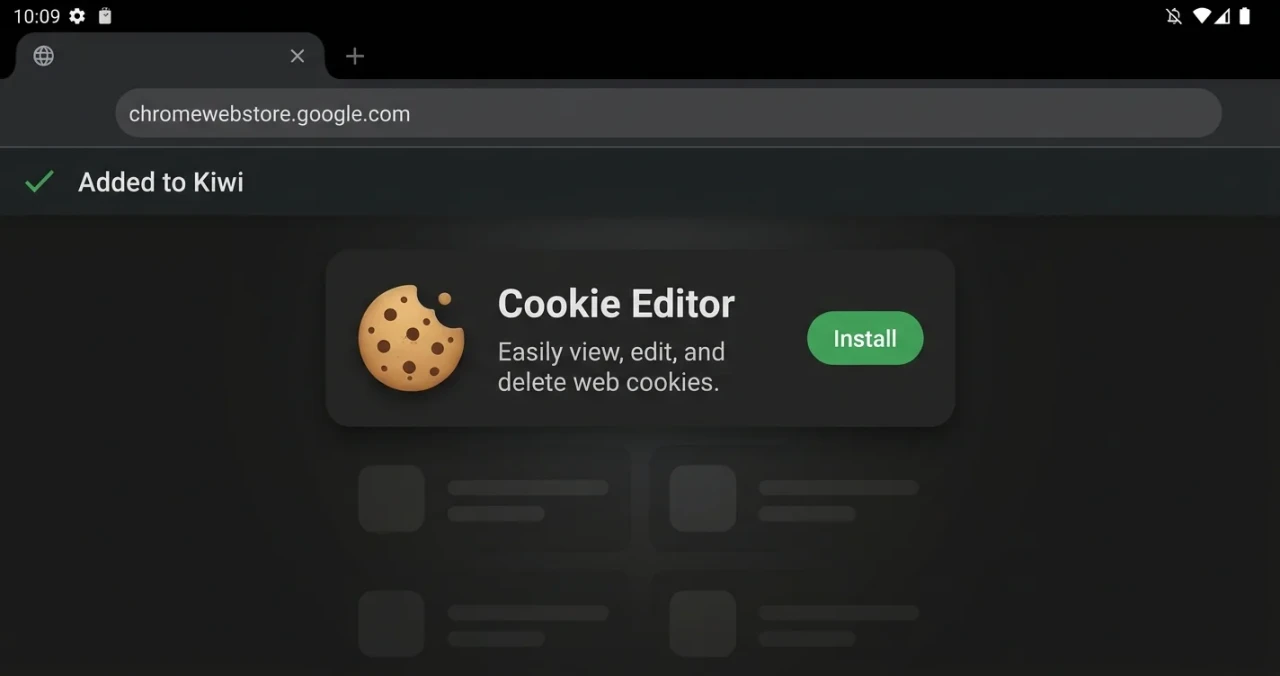
Chrome Web Store in Kiwi Browser: installing Cookie Editor
1. Open Kiwi Browser.
2. Go to chromewebstore.google.com and search for Cookie Editor.
3. Tap Install. The extension will appear in the browser.
Alternative: if you use Firefox for Android, install Cookie Editor from Firefox Add-ons.
Step 3. Open the site and the extension
1. In Kiwi Browser, open the site you want to log into. You do not need to sign in.
2. Tap the browser menu (three dots in the top right corner) and choose Extensions.
3. Tap Cookie Editor.
Step 4. Load the cookies
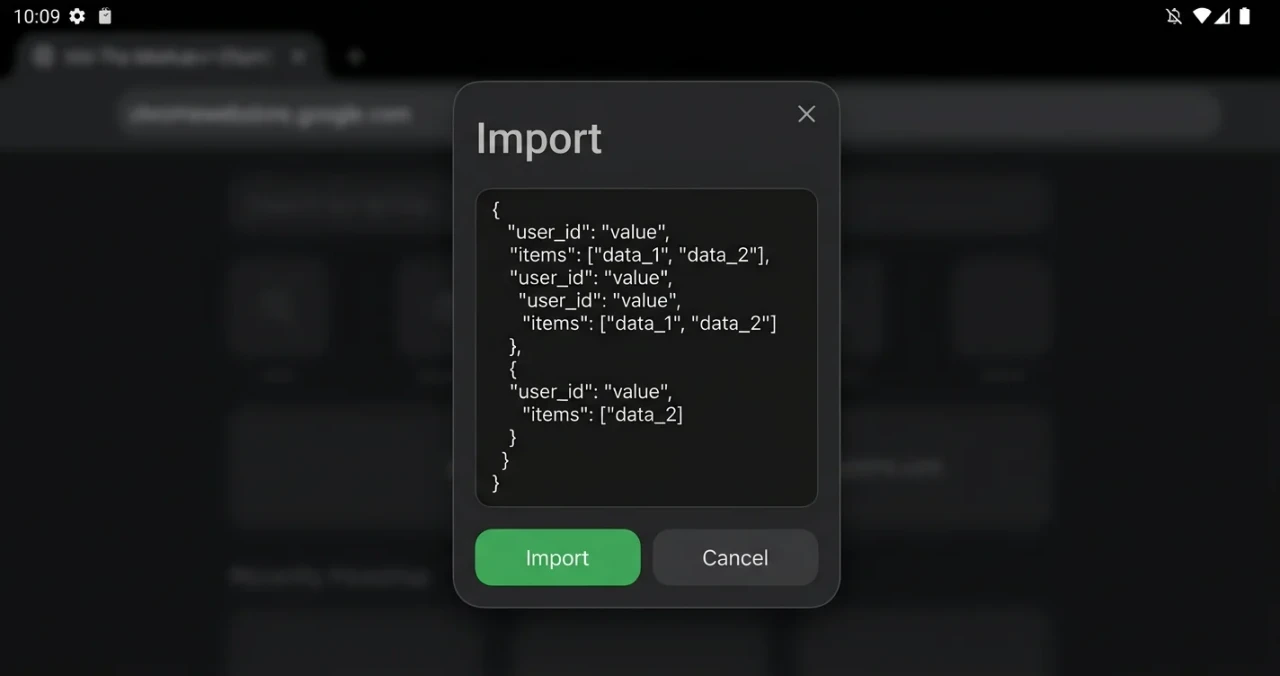
Import window in Cookie Editor on Android
1. In the Cookie Editor window, tap Import.
2. Paste the cookies from the account bundle or upload the file.
3. Tap Save or Import.
4. Close the window and refresh the page.
If the cookies are valid, you will be logged in without a password.
Why login may fail
Cookies are outdated. The session resets if the owner logged out or changed the password.
Wrong domain. Make sure the cookies are applied to the correct site.
Browser blocks third-party cookies. In Kiwi or Firefox settings, allow cookies for the site.
Extension is not active. Check that Cookie Editor is enabled in the browser's extension list.
The system flags the account. The mobile browser fingerprint does not match the desktop one, so the platform may request confirmation or temporarily limit the account.
Security
Cookies are access to the account. Do not share them with third parties or store them in plain text. If they leak, change the account password.
Conclusion
Logging in with cookies on Android is possible through Kiwi Browser or Firefox with the Cookie Editor extension. It takes a few minutes and does not require root. Keep in mind this method is not recommended as an everyday solution: use it only as a last resort. If you need ready-made accounts, you can find them at zfxshop.biz.