


How to Log Into an Account with Cookies on iPhone: Step-by-Step Guide
How to Log Into an Account with Cookies on iPhone: Step-by-Step Guide
Cookie-based login on iPhone at a glance
Logging in with cookies on iPhone is a way to authorize without a password and SMS code. Instead of a login, you load saved session cookies through a free Safari extension, and the site treats you as already signed in. Here is how to do it step by step on iPhone.
Important: use this method only as a last resort. Cookies are usually captured from the desktop version of a site, and a mobile browser has a different fingerprint. Because of this, the system may immediately send the account for review, ask for SMS confirmation or reset the session. If you can log in the normal way, do that. The guide below is for cases when other options are unavailable.
If you need ready-made accounts, you can find them at zfxshop.biz.
What you need
1. Safari (the default browser on iPhone).
2. The free Cookie Editor extension for Safari from the App Store.
3. Session cookies from the account bundle.
No jailbreak or third-party tools required.
Step 1. Install Cookie Editor
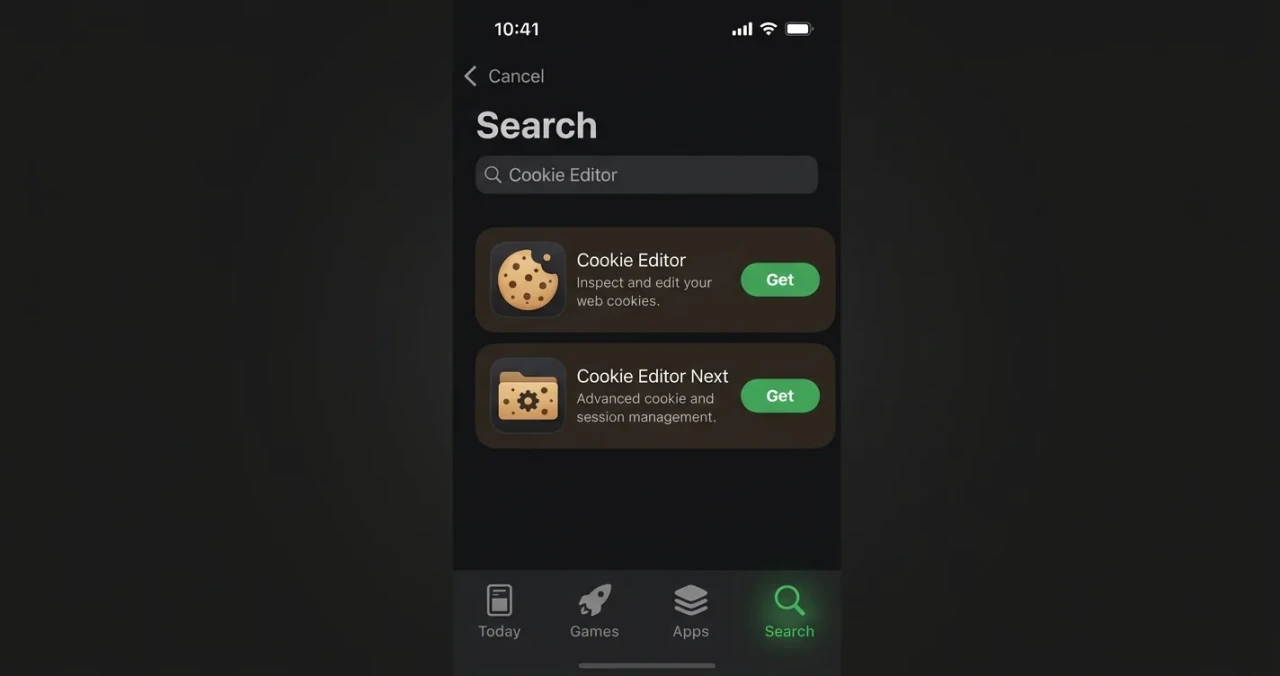
Searching for Cookie Editor in the App Store
Open the App Store and search for Cookie Editor for Safari. Note that the regular Cookie Editor for Mac or for Chrome on iPhone will not work; you need the Safari version. The extension is free.
After installation, the app appears in Safari settings as an extension.
Step 2. Enable the extension in Safari
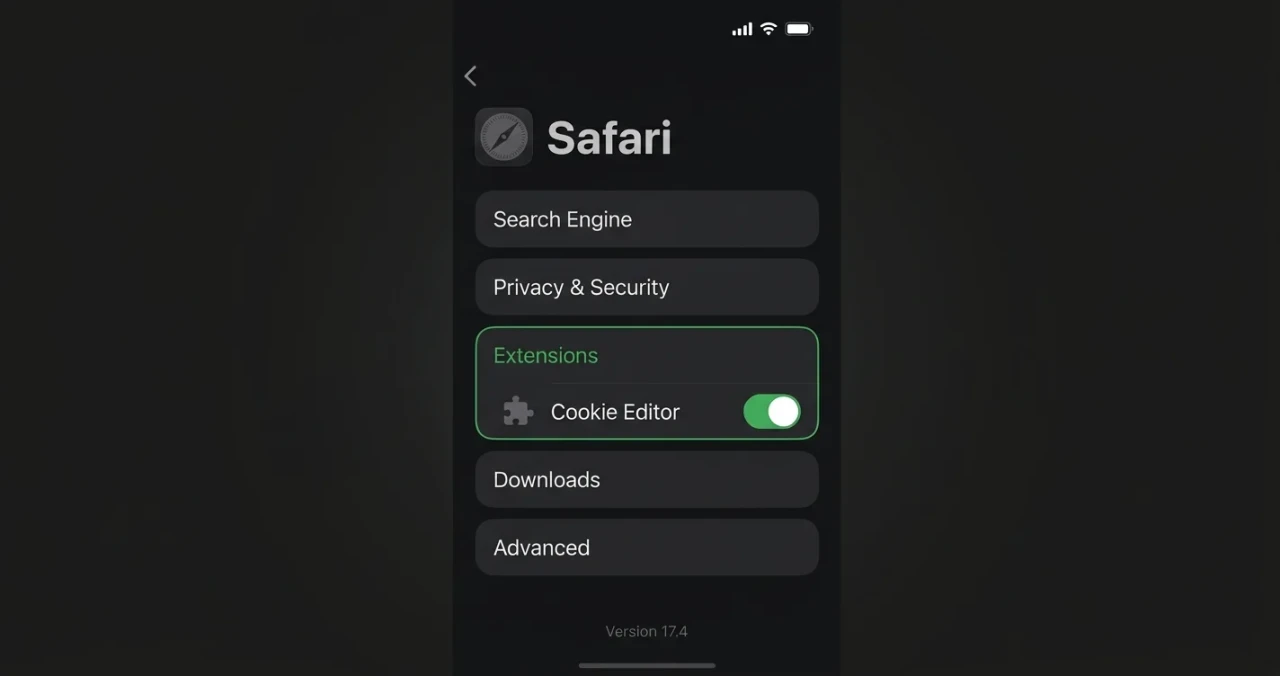
Safari settings, Extensions section
1. Open iPhone Settings.
2. Find Safari. On iOS 18 it lives under Settings → Apps → Safari; on older versions it is directly in the settings list.
3. Choose Extensions.
4. Find Cookie Editor in the list and turn the toggle on.
5. Allow access to websites when Safari asks for confirmation. To work with cookies, select "Allow."
Step 3. Open the site and the extension
1. In Safari, open the site you want to log into. You do not need to sign in.
2. Tap the extensions icon in the address bar (the "aA" or puzzle piece icon).
3. Choose Cookie Editor from the list.
If you cannot see the extension in this menu, go back to Step 2: most likely the toggle is off.
Step 4. Load the cookies
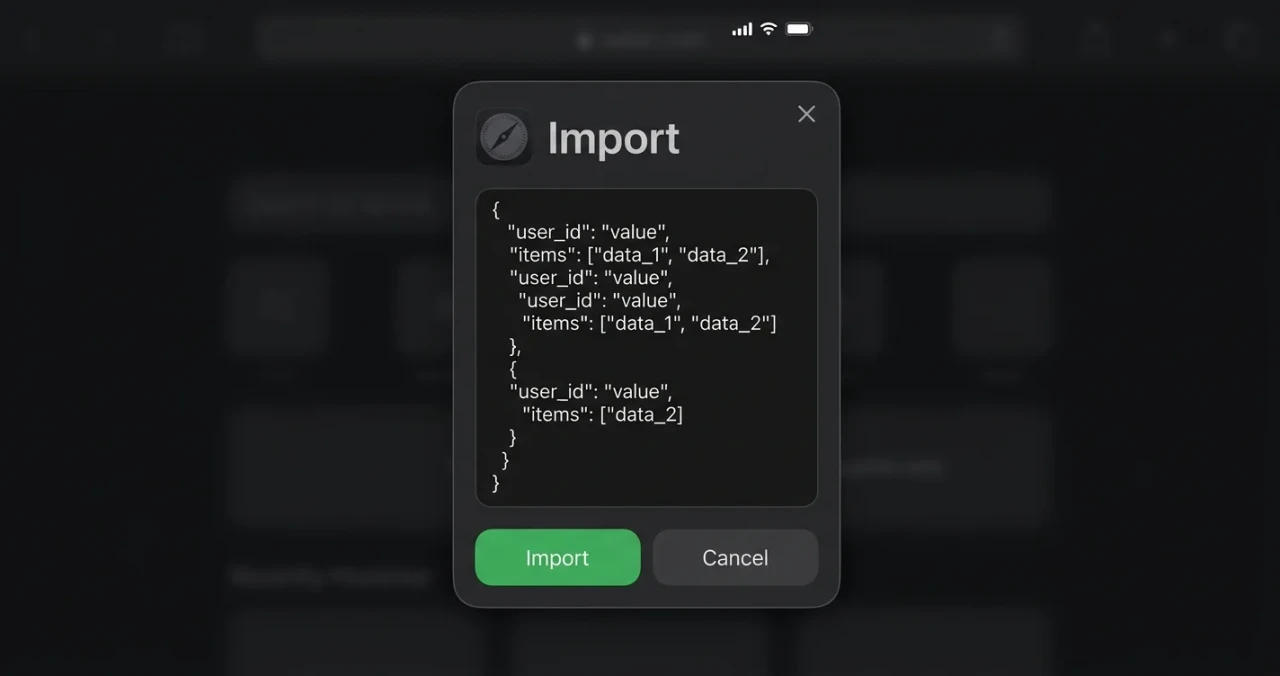
Import window in Cookie Editor: paste cookies from the bundle here
1. In the Cookie Editor window, tap Import.
2. Paste the cookies from the account bundle or upload the file via the file picker.
3. Tap Import or Save to apply the cookies.
4. Close the extension window and refresh the page in Safari.
If the cookies are valid, you will be logged in automatically.
Why login may fail
Cookies are outdated. If the account owner logged out or changed the password, the session is reset.
Wrong domain. Make sure the cookies are applied to the site you are logging into.
Safari blocks cookies. Check that "Block All Cookies" is turned off in Safari settings.
Extension is not enabled. Go back to Settings → Safari → Extensions and make sure the toggle is on.
The system flags the account. The mobile browser fingerprint does not match the desktop one, so the platform may request confirmation or temporarily limit the account.
Security
Session cookies are a key to the account. Do not share them with third parties or store them in plain text in notes or messengers. If the cookies leak, change the account password: this resets all active sessions.
Conclusion
Logging in with cookies on iPhone takes about five minutes: install the extension, enable it in Safari and load the cookies. Keep in mind this method is not recommended as an everyday solution: use it only as a last resort. If you need ready-made accounts, you can find them at zfxshop.biz.